Quick start / Your first blockout
Make a map
someone else can read.
Start with Tidewatch, a small rescue mission. Build a court and relay room in seven steps, then add cover, pacing contrast, an area, a raised lookout and a second saved view in five more.
The editor opens in a separate tab so you can keep this guide beside it. Screenshots show the actual editor; panel positions depend on your window size.
Three controls to know
- Move around
- Scroll to zoom. Hold Space and drag to pan. Fit frames the map.
- Select the right thing
- Geometry selects floors, rooms and objects. Design selects pins, routes and areas.
- Recover quickly
- Escape cancels an unfinished drawing. Use the undo arrow in the top bar to undo an edit.
Step 01
Read a simple mission first
- Open Sample ▾ → Tidewatch. Follow the orange route from Arrive, through Restore power and Send signal, to the rescue boat.
- Look at the plate stack on the left: Harbour level is at 0 m; Signal deck is at +3 m. A plate is a floor or elevation layer.
- Use this as your target: a few readable spaces, a clear route, and pins that explain what happens. Next, click New to build a small practice map. Save any work you want to keep first.
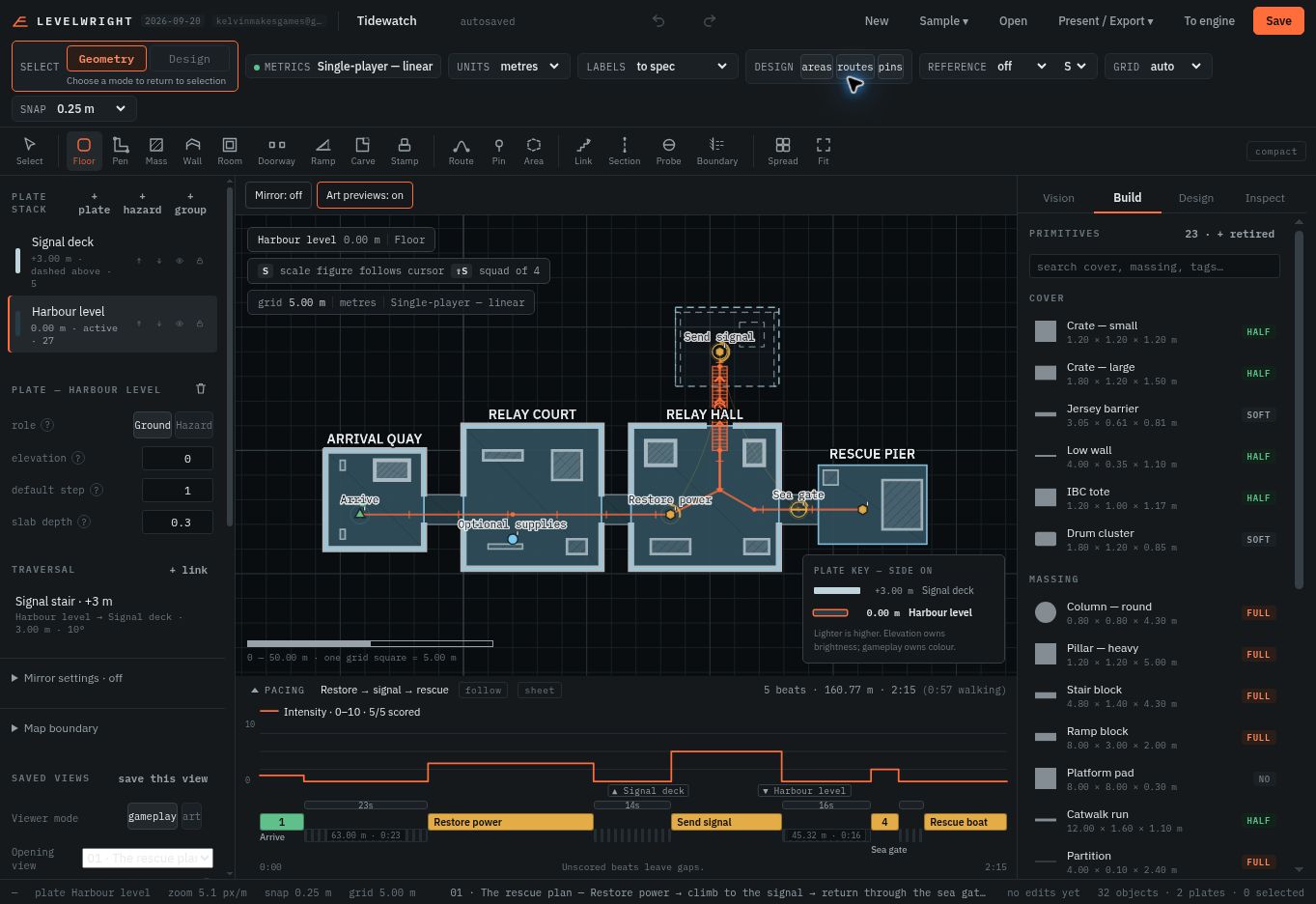
Check your result You can identify the start, objective and exit without inspecting every object.
Step 02
Draw your first floor
- Name the project First blockout in the top bar. Keep Ground selected in the plate stack.
- Choose Floor in the toolbar, then drag a rectangle on the grid. Make an open court with room to move through it; exact dimensions can wait.
- Choose Geometry in the top-left selection control when you want to select and adjust the shape. The first shape on an empty plate becomes its walkable floor.
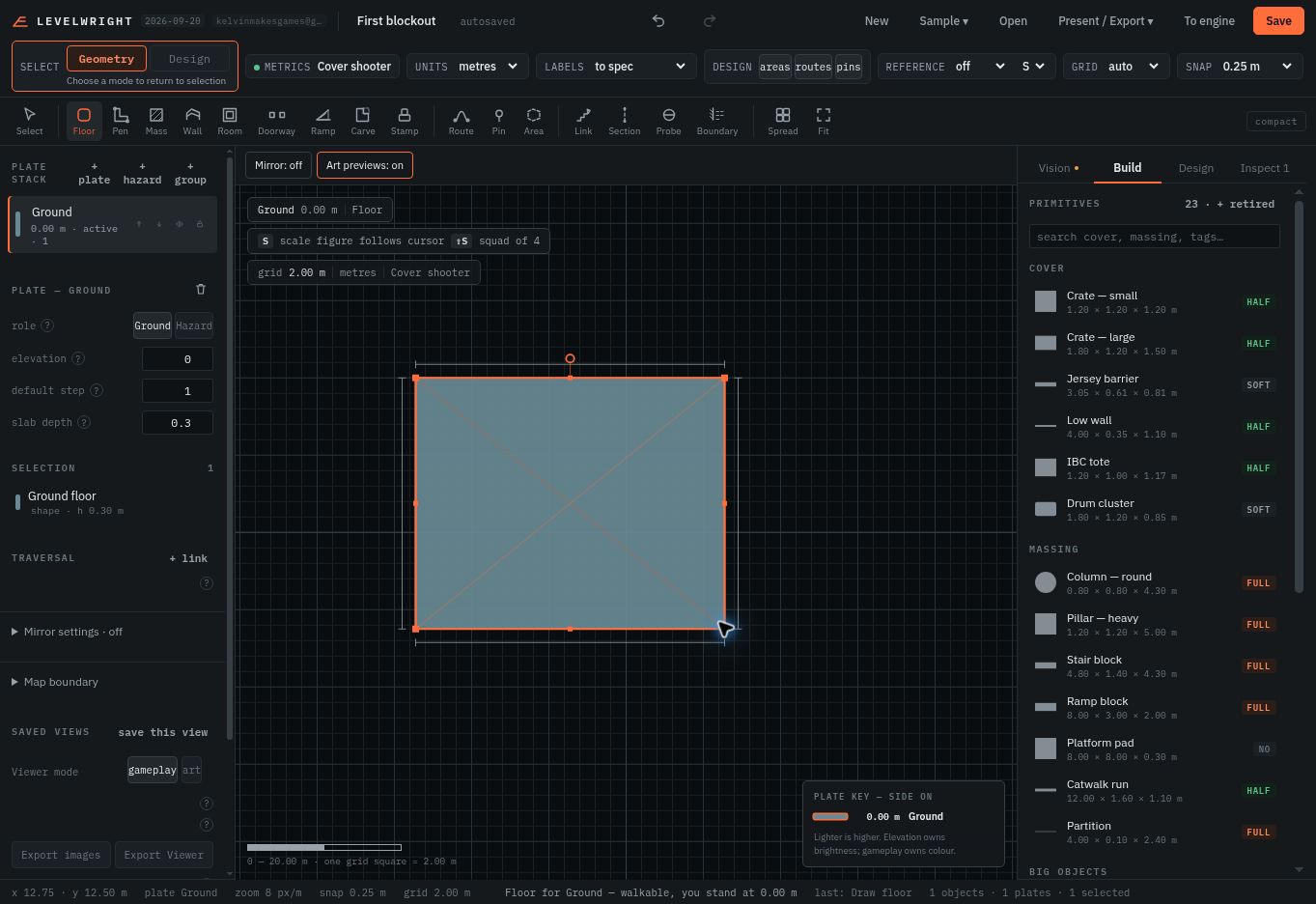
Check your result A filled floor appears, and the plate stack shows an object on Ground. Important: later Floor shapes on the same plate default to objects; check their height and top in Inspect.
Step 03
Add a room and an entrance
- Choose Room and drag a smaller rectangle touching the right edge of the court. The brush creates walls and a floor together.
- Choose Doorway, then click the room wall facing the court. Zoom in if you need to place the opening precisely.
- Return to Geometry to adjust the room. Keep the first exercise to one elevation; a working doorway is more useful than extra floors right now.
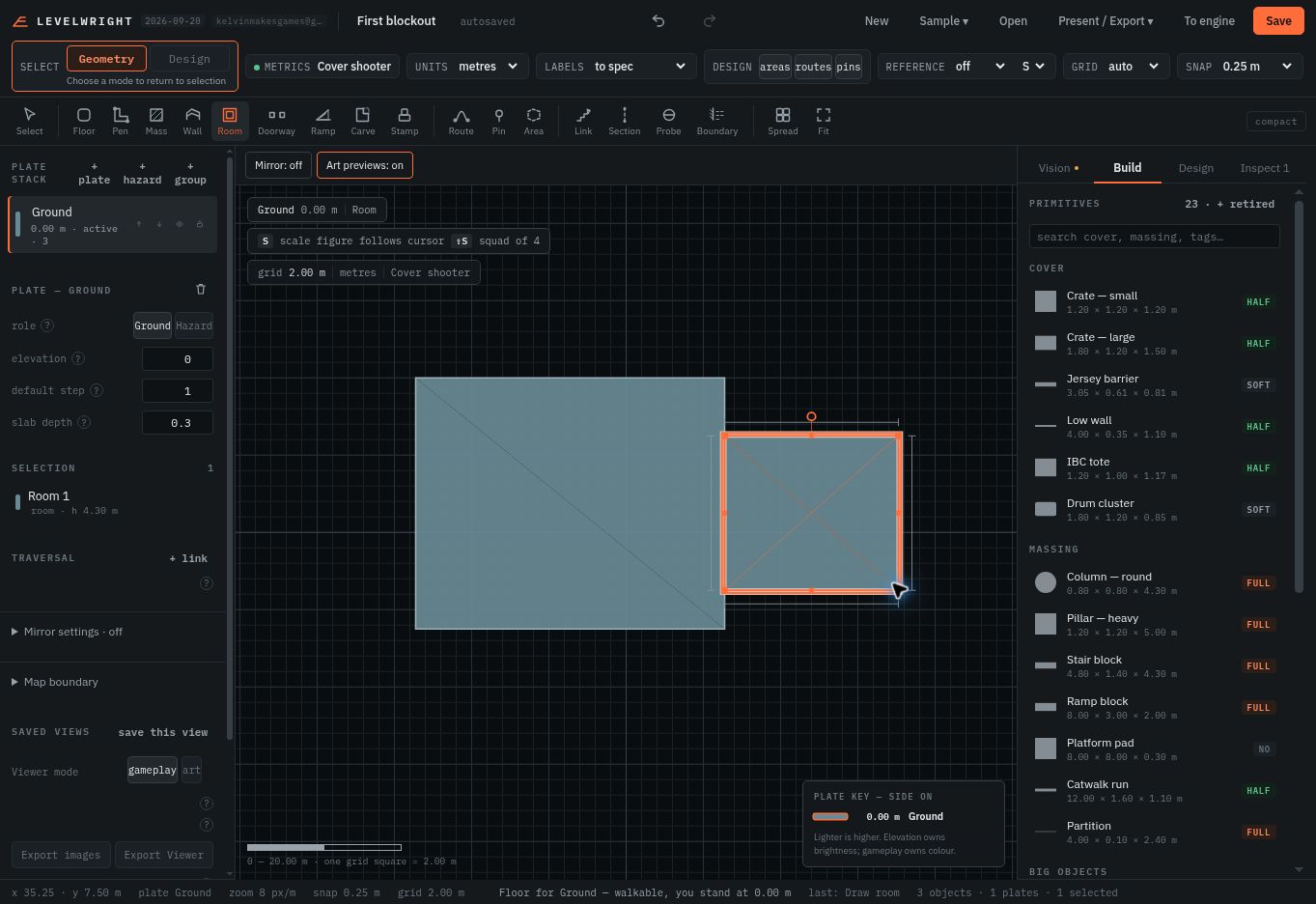
Check your result The court connects to the room through a visible opening. The screenshot shows the room before cutting its doorway.
Step 04
Draw the player’s route
- Choose Route. Click a start point in the court, a point approaching the doorway, and an end point inside the room.
- Press Enter to finish. In Design → Routes, name the route and keep it as a Spine for this simple main path.
- To change a route’s corners later, switch the top-left selection control to Design. Geometry mode selects floors and walls; Design mode selects routes, pins and areas.
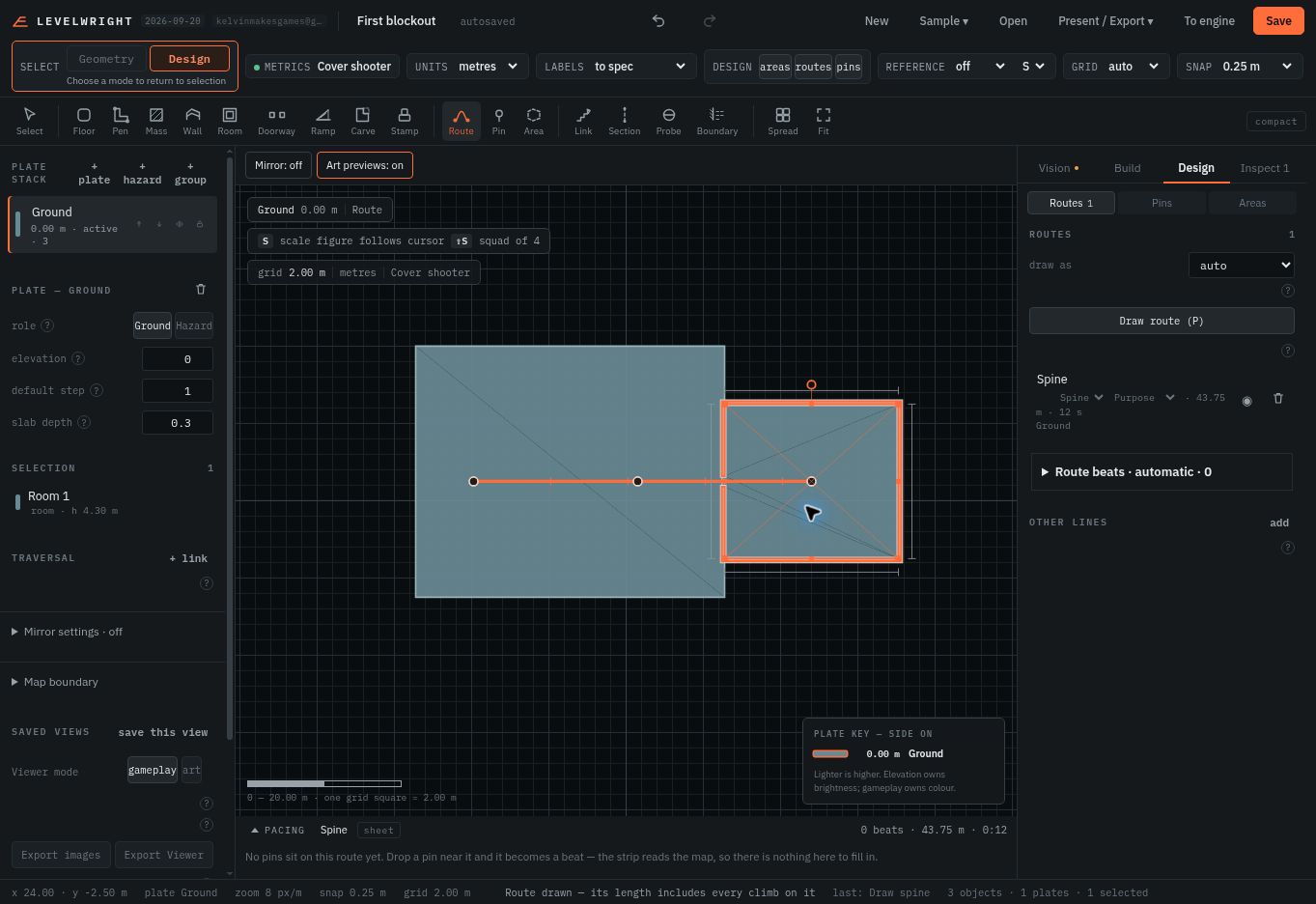
Check your result A continuous route passes through the opening. The pacing strip may say there are no pins yet—that is expected.
Step 05
Explain what happens along it
- Choose Pin and click near the route in the court. In Inspect, name it Arrival skirmish and use the Encounter kind.
- Write one sentence about the intended player experience. Set intensity to 4 and time here to 20 seconds as practice values.
- Add more pins when you need more beats: for example, a quiet pause before an objective in the relay room. Use different scores to express contrast, then inspect the pacing strip.
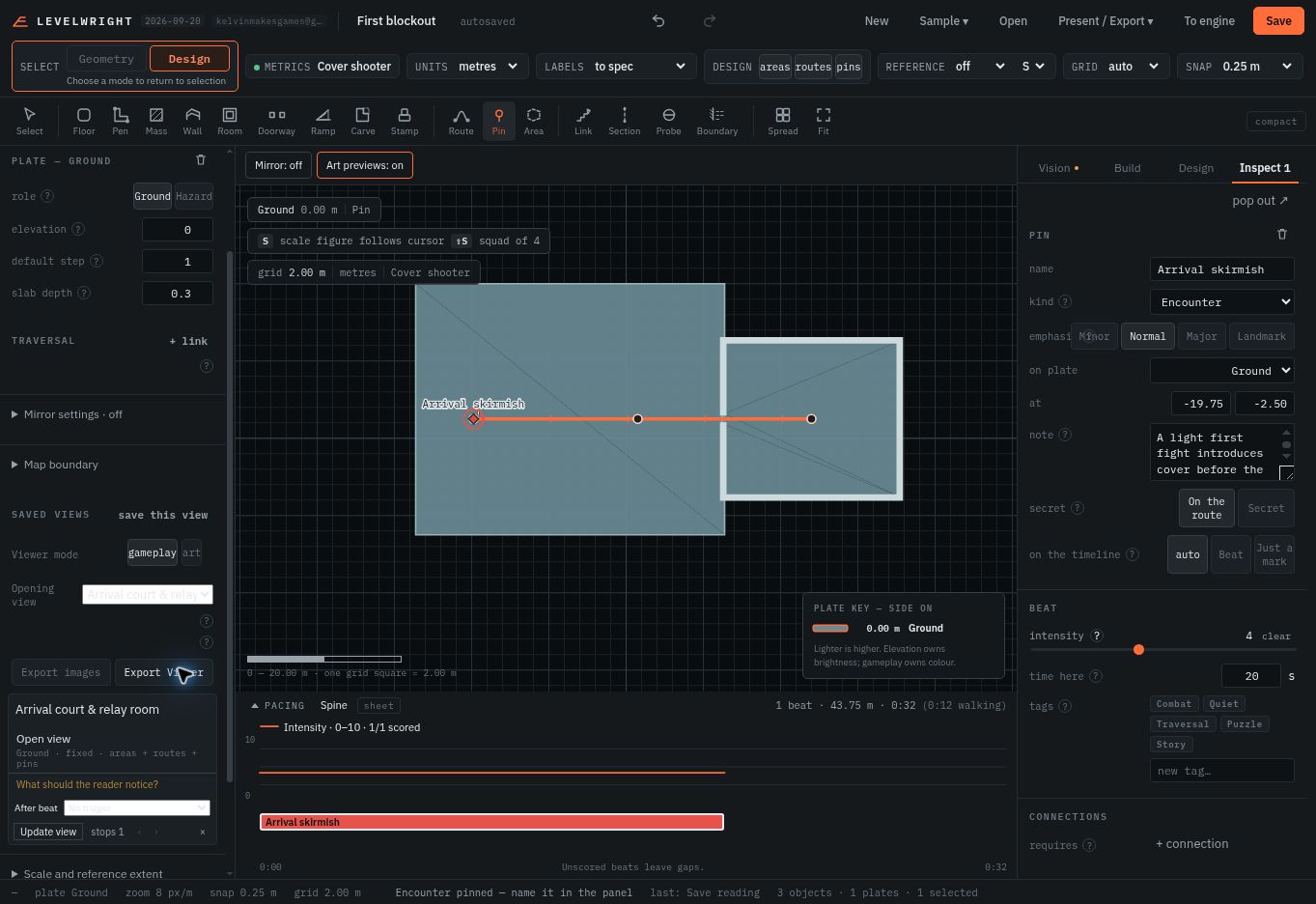
Check your result The route now has a beat. A single scored pin produces a flat section; you need multiple scored beats to communicate a rise and fall. Scores express design intent, not measured playtest results.
Step 06
Choose what a reviewer sees first
- Open Vision on the right. Write a one-sentence premise: “Cross an exposed arrival court and reach the relay room through a narrow doorway.” Add a short structure and intent.
- Frame the court and room. Scroll the left panel to Saved views → save this view, name it Arrival court & relay room, and click the small Save beside the name field.
- Add a caption explaining what to notice. Set it as the Opening view. If you adjust the camera, active floor or visibility later, use Update view to replace the stored framing.
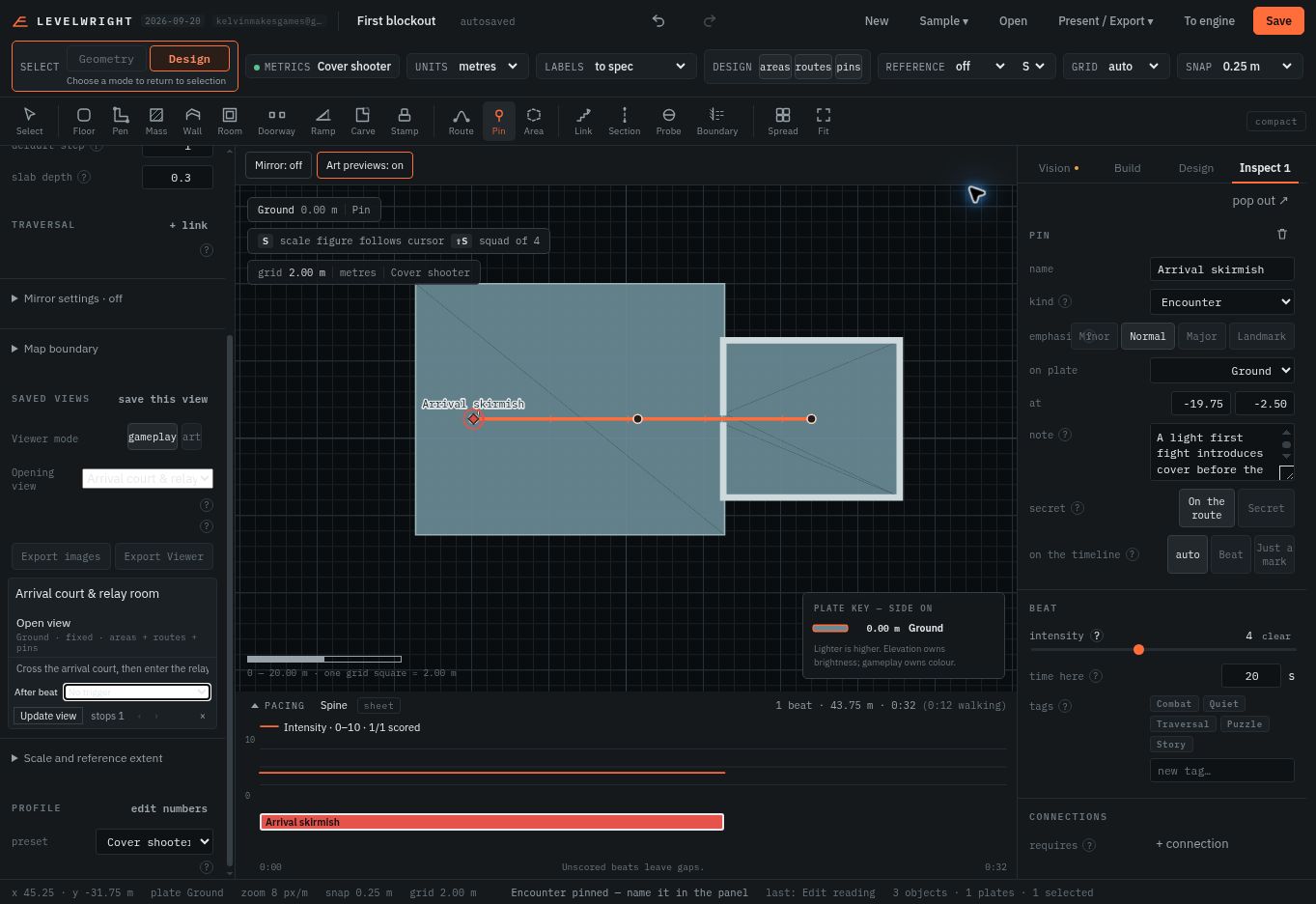
Check your result You have a named camera view with a caption. A saved view explains a place; a pin explains an event at a location.
Step 07
Save the map. Share the plan.
- Click the orange Save button in the top bar to download the editable .datum project. Keep this file for future changes; browser autosave is not a substitute for your own copy.
- Choose Present / Export → Viewer — one .html file. Send that HTML to a reviewer who needs to explore the plan without editing it.
- Open the exported HTML and check its first view. Can someone find the route and understand the intent? Export again after later edits: an existing Viewer is a snapshot and does not update itself.
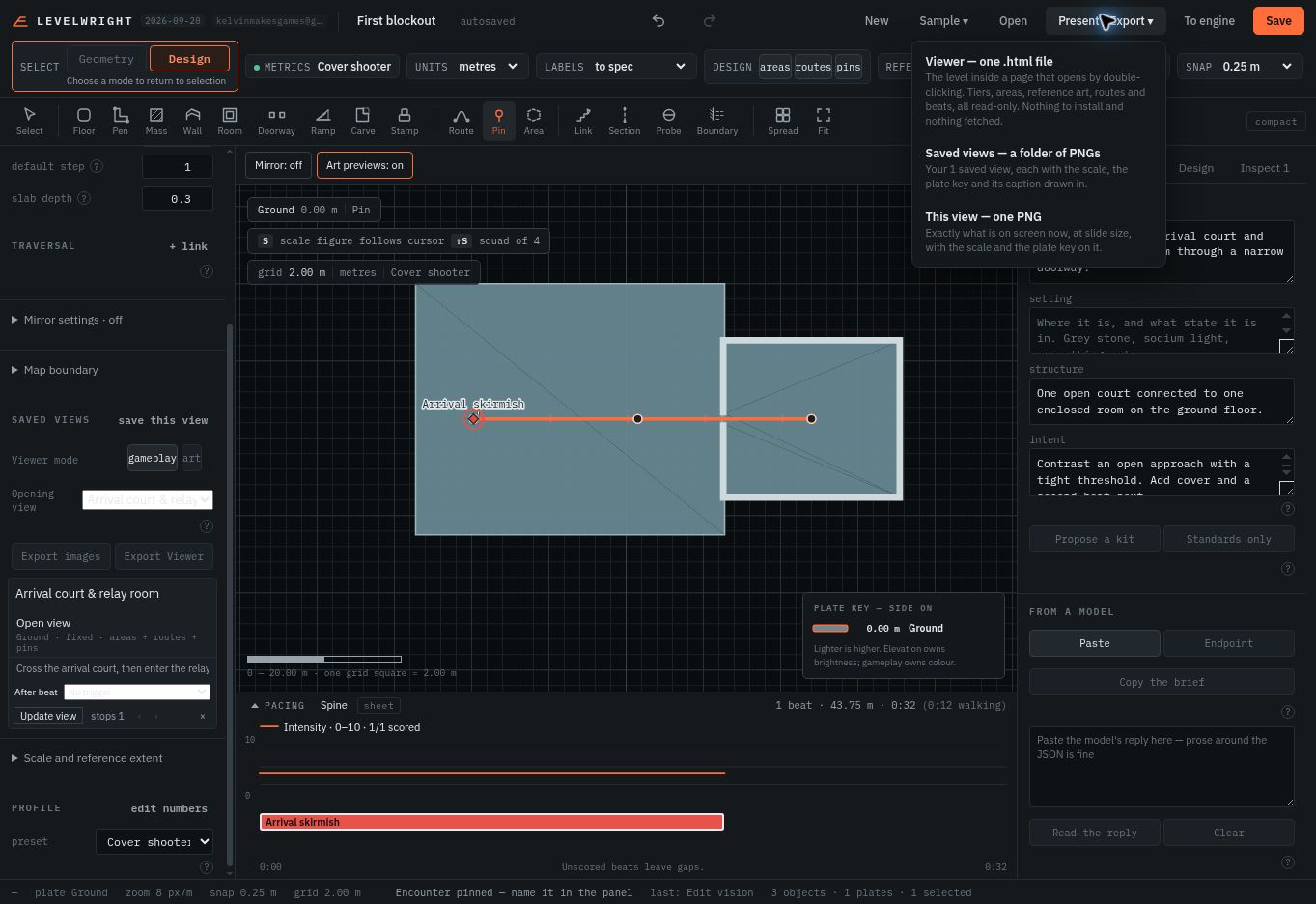
Check your result You have two different files: a .datum for editing and a Viewer .html for sharing. To engine is for geometry handoff, not the full editable project.
Step 08 / Second pass
Place cover with a purpose
- Continue your practice map, or open the step 7 download below. Rename this version First blockout second pass so you can keep the simpler exercise.
- Open Build, choose Low wall, and click twice in the court to place two pieces on opposite sides of the route. Move the cursor away to see the result clearly.
- Return to Geometry selection when finished. Keep the doorway clear and ask what each piece helps the player do: approach, pause or change position.
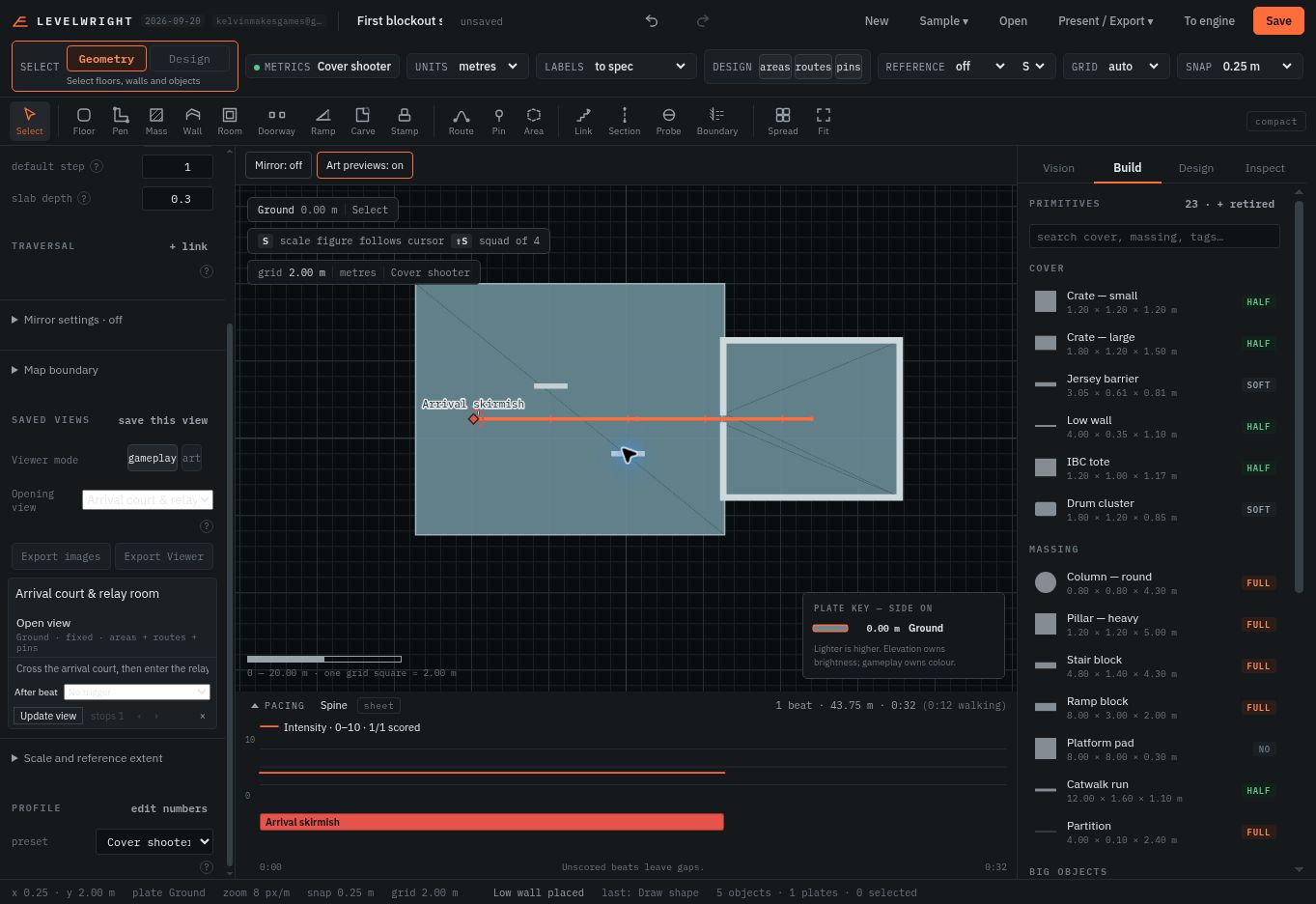
Check your result The cover supports the route instead of blocking it. Its cover category comes from the chosen metrics; treat the blockout as intent to test in your game.
Step 09 / Second pass
Give the pacing curve a contrast
- Add a pin near the route before the doorway. Name it Catch your breath, choose Quiet, set intensity to 1 and time here to 10 seconds.
- Add another pin at the route end inside the room: Restore relay, kind Objective, intensity 3, time here 15 seconds. Give each a short sentence about the intended experience.
- Compare these with Arrival skirmish at intensity 4 for 20 seconds. Read the pacing strip from left to right: the scored beats and the walking gaps tell different parts of the story.
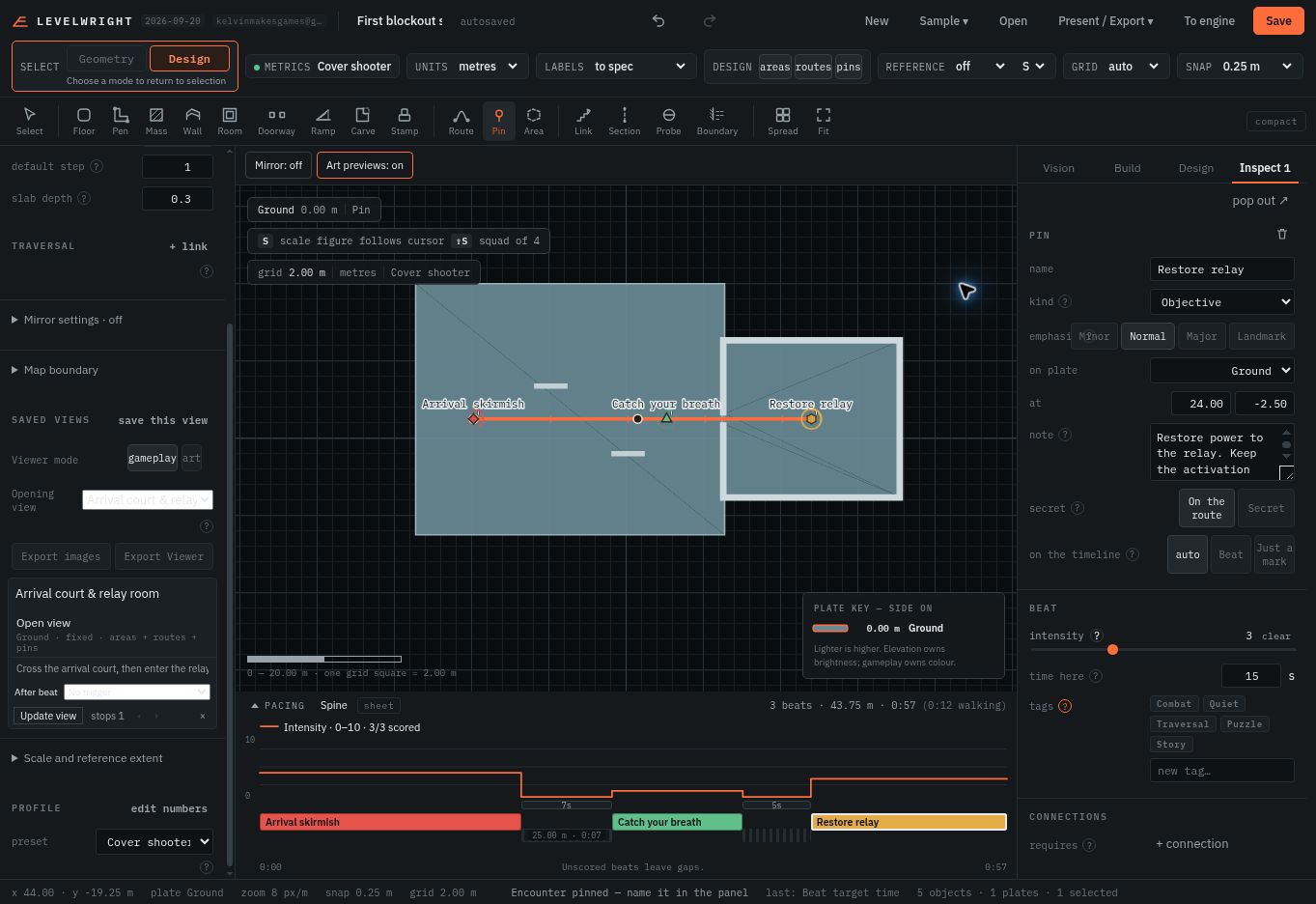
Check your result The strip reports three scored beats. These practice values produce about 57 seconds including walking in this example; they are a planning estimate, not a playtest measurement.
Step 10 / Second pass
Name the space and its visual intent
- Choose Area and drag a box around the court. In Design → Areas, name it Arrival court. An area describes a region; it does not create a floor.
- In what it is, write its gameplay role: “Open combat space: staggered cover leads toward the relay doorway.” In in words, describe its look: “Weathered concrete court, low service barriers, a warm-lit relay doorway.”
- For your own map, use Reference → choose a file or drop an image into that panel to attach relevant art. Use references you have permission to share. The practice map stops at the written art brief.
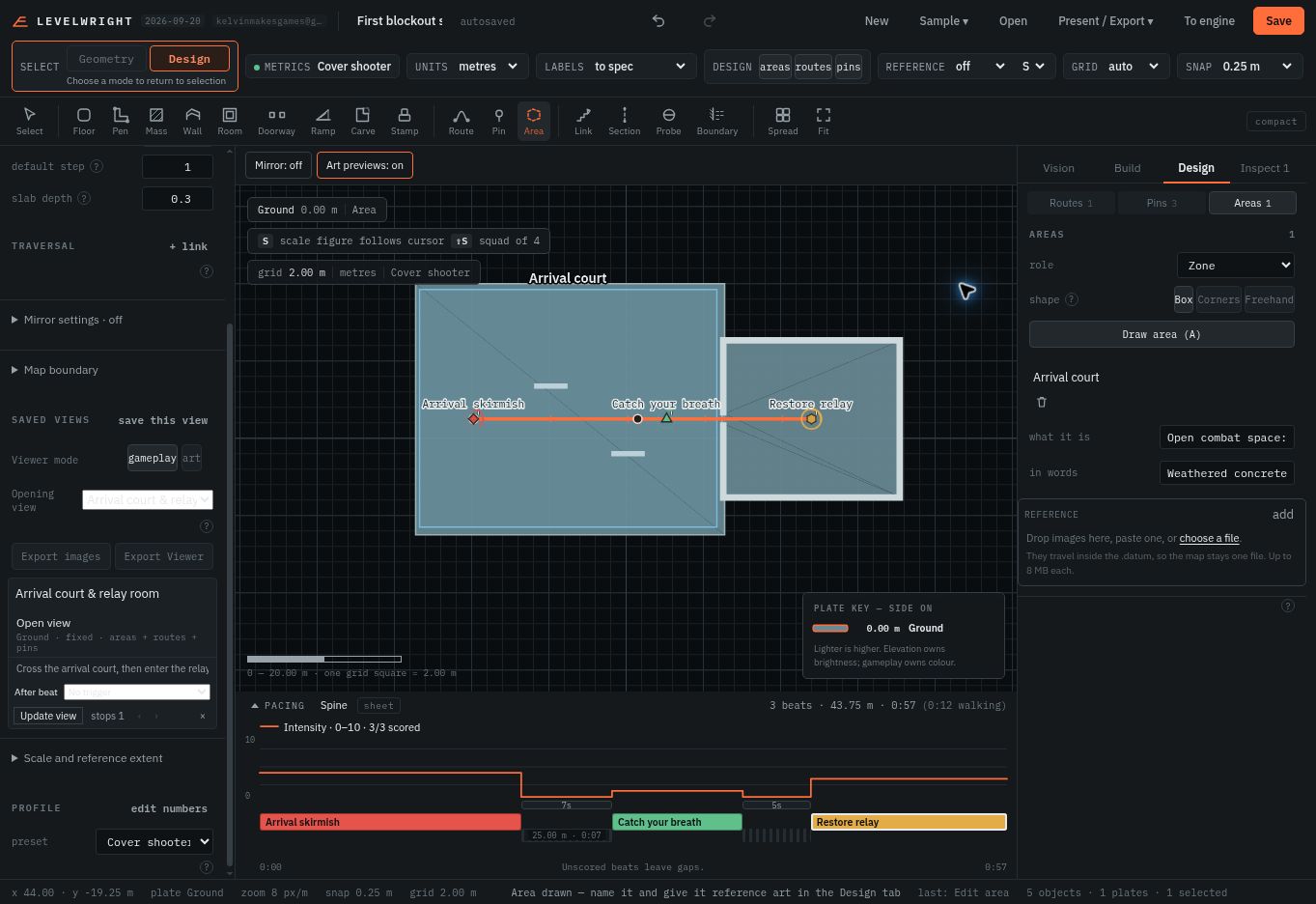
Check your result The court has a readable place name. Pins explain events, areas explain places, and reference images explain appearance. Images travel inside the .datum, so keep them focused.
Step 11 / Second pass
Add a raised floor and connect it
- Click + plate, rename the new floor Lookout, and set its elevation to 3 m. With Lookout active, use Floor to draw a small platform along the north edge of the court.
- Switch back to Ground before choosing Link. Click the lower end on the court, then click the upper end inside the lookout footprint. Use two clicks, not a drag: the tool links the active floor to the next floor above it.
- Open the new link in the left Traversal list. Name it Lookout stair; check type Stair, from Ground, to Lookout, and Two-way. Switch floors to inspect how the connection meets each landing.
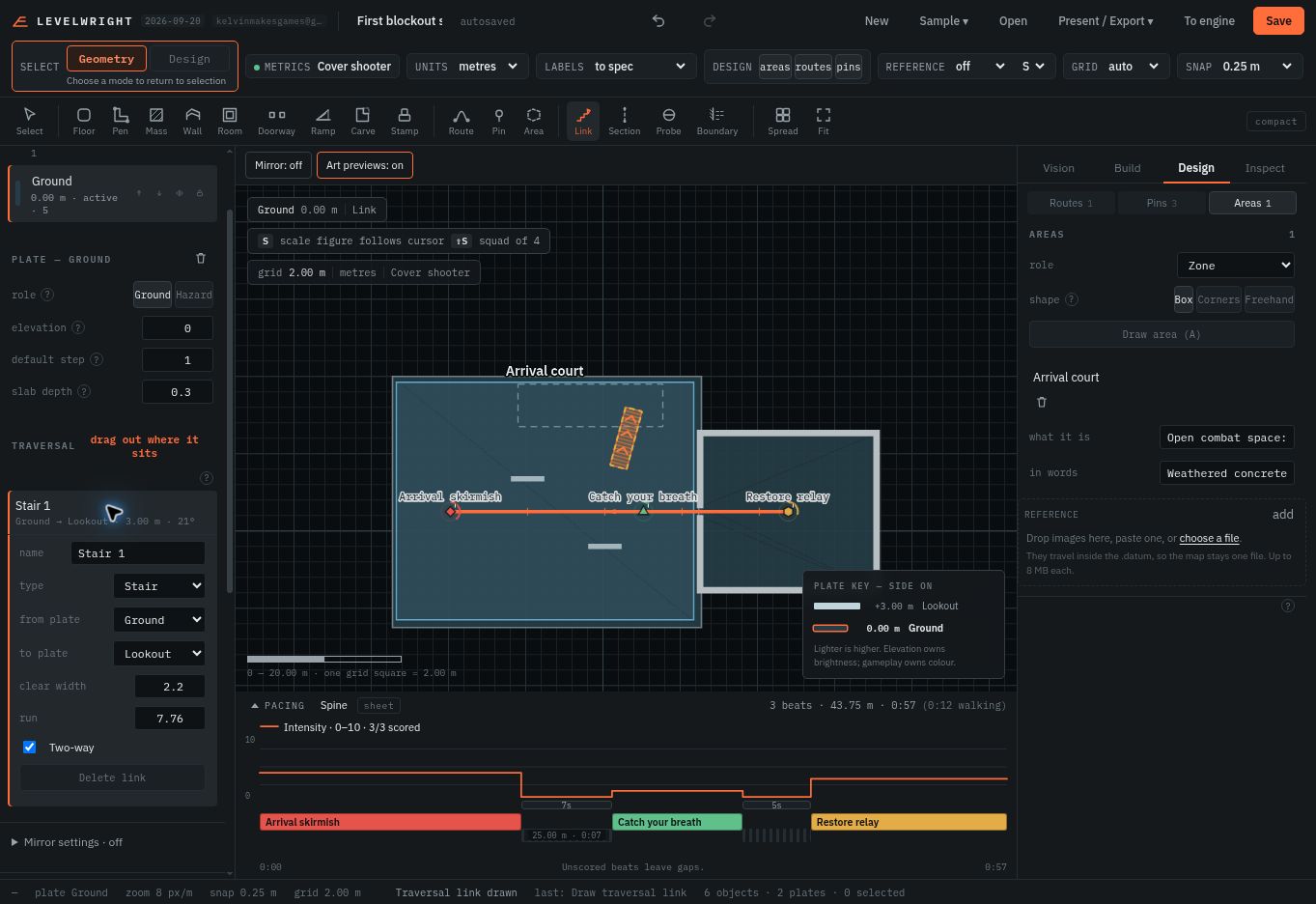
Check your result The stair joins 0 m to +3 m, and its ends meet the intended spaces. A traversal link communicates the connection; it does not automatically extend the mission route. The lookout is an optional spatial exercise here.
Step 12 / Second pass
Save a second reading, then share again
- Activate Lookout and frame the platform, stair and court. Under Saved views, save Lookout above the court. Caption it: “Optional elevated lookout: the stair connects Ground to +3 m above the court.”
- Keep Arrival court & relay room as the opening view. Use Open view on each saved view to check its floor and framing. Use that view’s Update view only when you intend to replace the stored camera and visibility.
- Update Vision → structure to mention the lookout. Save a new .datum and export a fresh Viewer. In the exported file, check the opening view, both saved views and the three route beats.
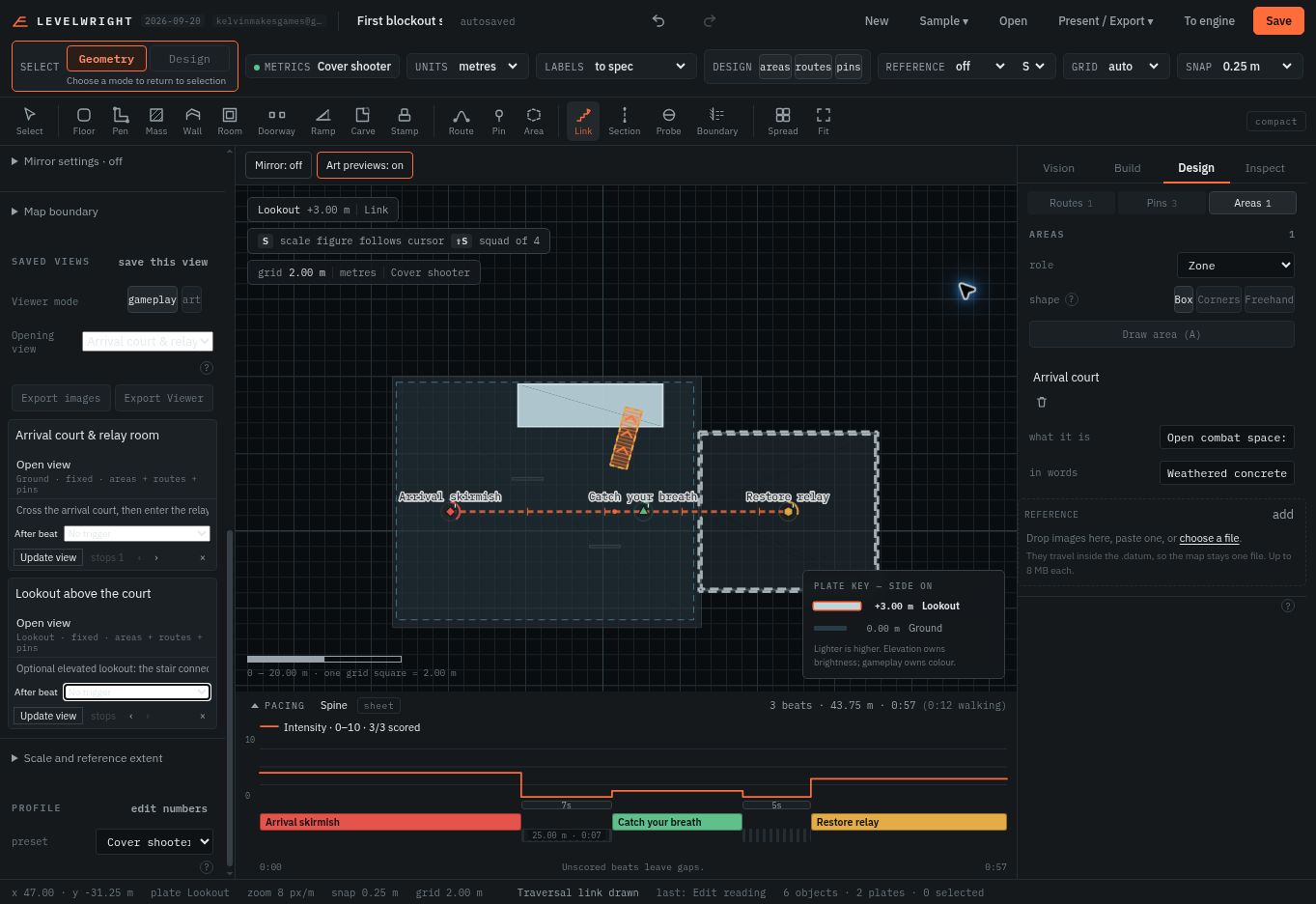
Check your result A reviewer should identify the court, relay room and elevated lookout, understand the stair connection, and find the fight–pause–objective sequence. If a detail needs a long explanation, simplify the map or add a focused view.
Practice files
Start simple. Compare your second pass.
The first checkpoint has one court, one room, one route and one beat. The second adds two cover pieces, three scored beats, a named area, a raised lookout, a stair and a second saved view.
Both Viewers were exported through the editor. These are small learning exercises, not complete missions. Reference images are left for your own art brief.
If something doesn’t behave as expected
I can’t select a pin or route.
Choose Design in the top-left selection mode. The Design tab on the right is a panel; selection mode decides what clicks on the map can select.
My next Floor shape looks like a raised object.
The first shape on an empty plate becomes its floor. Later shapes default to objects on that plate. Select the shape and check its top and height in Inspect, or use Room when you want walls and a floor together.
A pin is missing from the pacing strip.
Check that you are following the intended route, that the pin is near it on the appropriate floor, and that “on the timeline” is not set to “Just a mark.” Explicit route beat ordering can also affect which pins are included.
A saved view didn’t keep my latest framing.
After changing the camera, floor or visibility, click Update view on that saved view. Changing its caption alone does not replace its camera.
The shared Viewer still shows an old version.
Open your latest .datum in the editor and export a new Viewer. Replacing the project file or deploying a newer editor does not update existing exported HTML.